Unable to decide which version of QuickBooks is right for you? Well, the user can opt for any of the QuickBooks versions, as per the basic requirements of the user. Each version of QuickBooks is designed in a way to address particular business requirements. There can be various QuickBooks products available out there, that can help you manage the business account efficiently. In today’s article, we will be discussing in detail each of the products, services, and versions, which will help you in deciding the best one for you. Thus, make sure that you read this article carefully till the end and understand which version of QuickBooks is right for you.
Different QuickBooks Versions to Choose From
As we said earlier, there are different available versions of QuickBooks, let us check this out. By the end of this section, you will get to know which version of Quickbooks is right for you.
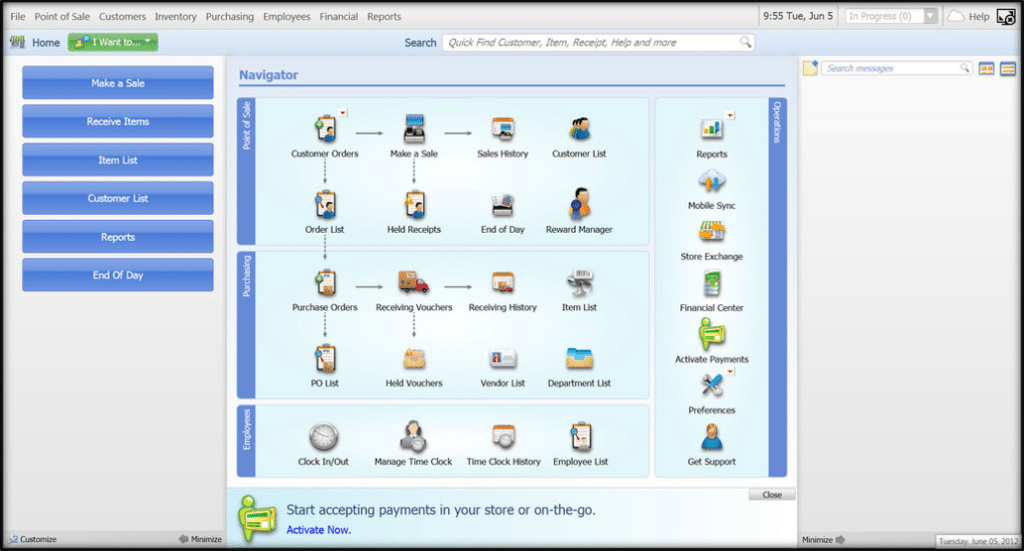
QuickBooks Point of Sale (POS)
The QuickBooks point of sale accepts all sorts of payments and is reconciled in QuickBooks desktop. With the help of QuickBooks point of sale, the user can:
The user can track the inventory while sending and receiving files.
Also, this software allows you to connect with a cash register.
Along with that, the user can update prices and create discounts across departments.
Another feature is to track UPC codes.
The user can also sync sales data with QuickBooks and makes the best out of it.
QuickBooks Online
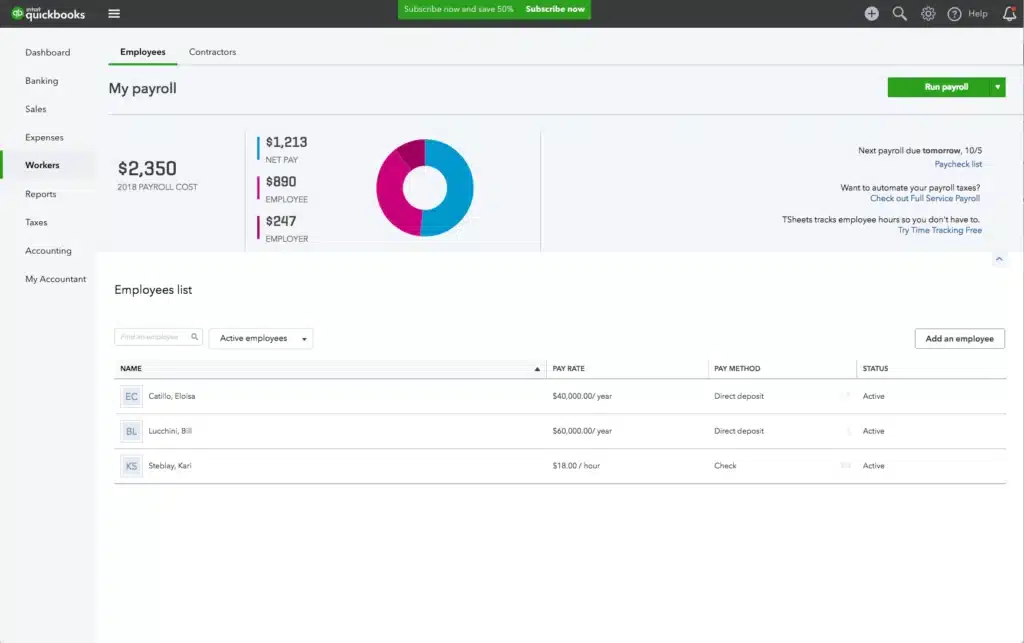
QuickBooks Online is a web-based product that permits its users to access the company anywhere in the world, all you need is a simple internet connection. The online version of QuickBooks can help you in:
Sending and tracking custom invoices.
Tracking the income and expenses.
Preparing and printing 1099s
The user can also track inventory using QuickBooks online.
Also, managing and paying bills becomes easy.
Creating and managing estimates.
Running instant sales and profit reports.
The user can easily sync bank accounts and apps.
Plans of QuickBooks Online
Plan
Features
Pricing
Simple Start
* Income and expense tracking * Invoicing and payments * Tax deductions * Receipt management * Cash flow management * General reports * Sales tax calculations * 1099 contractor management
$25 per month ($12.50 per month for a 3-month package)
Essentials
* All Simple Start features * 3 additional users * Time tracking * Bill payments
$50 per month ($25 per month for a 3-month package)
Plus
* All Simple Start and Essentials features * 5 additional users * Inventory tracking * Project tracking
$80 per month ($40 per month for a 3-month package)
Advanced
* All Simple Start, Essentials and Plus features * 25 additional users * Business analytics and insights * Batch invoicing * Custom user roles * Automated workflows * Premium apps * Online training * Dedicated support * Data backup and restoration
$180 per month ($90 per month for a 3-month pack
QuickBooks Payroll
Intuit, the developer of QuickBooks, offers a ton of payroll services, which permits the user to:
Edition: Differentiation within QuickBooks desktop premier or QBES for different business types. An example to better explain this includes: QuickBooks desktop premiere product 2019 (version) Accountant (edition).
Product: The product here means QuickBooks Desktop Pro, QuickBooks desktop premier, or QuickBooks desktop enterprise solutions
Version: Designated by a year within a product.
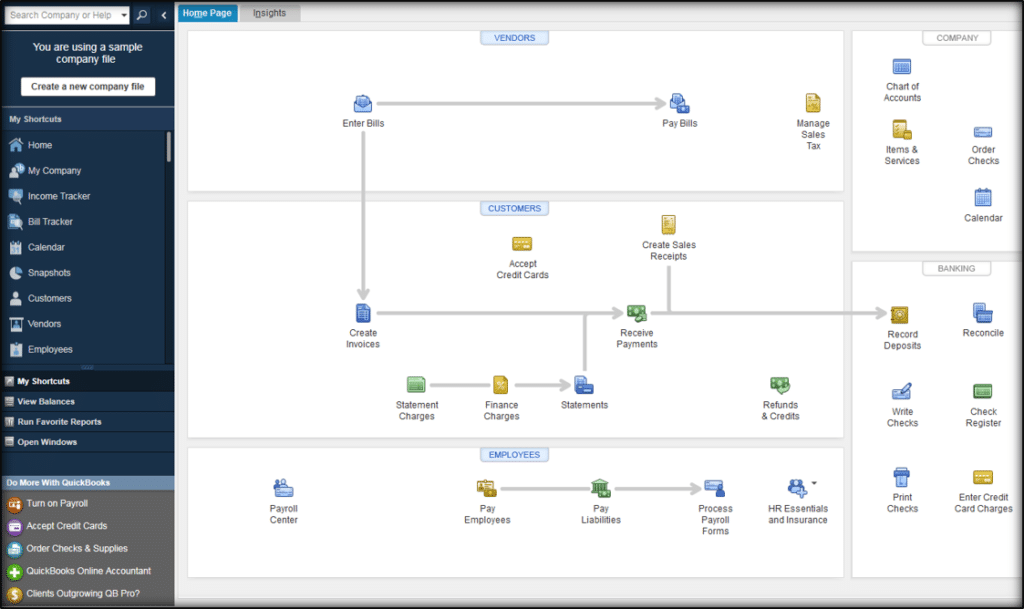
With QuickBooks desktop, the user can carry out the steps below:
Tracking income and expenses
Tracking inventory
Tracking time
Sending and tracking invoices
Running reports
Sending estimates
Tracking sales tax
Also, managing bills and accounts payable
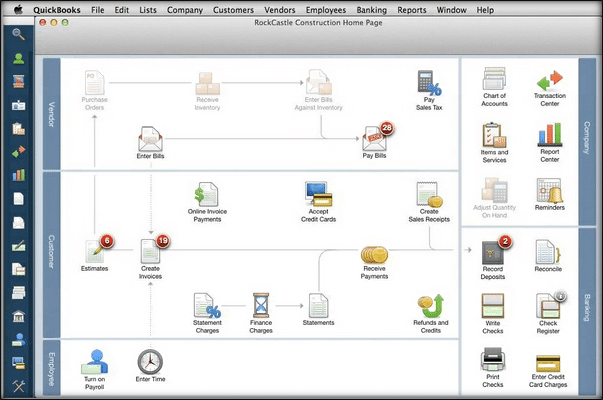
QuickBooks For Mac
Another version of QuickBooks is the QuickBooks for Mac, which means that one can use QuickBooks desktop on Mac. The QuickBooks 2022 Mac version is the only version available currently which is compatible with Mac. Using QuickBooks Mac, one can:
Easily track inventory
And can also track time
The user can manage bills and accounts payable.
Also, tracking sales tax becomes easy.
Running reports is another feature.
Moreover, the user can track incomes and expenses.
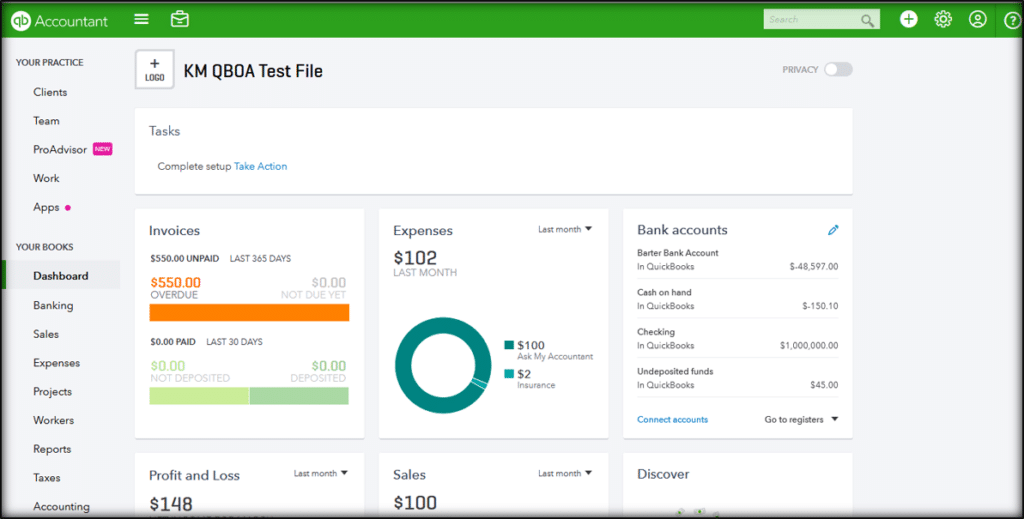
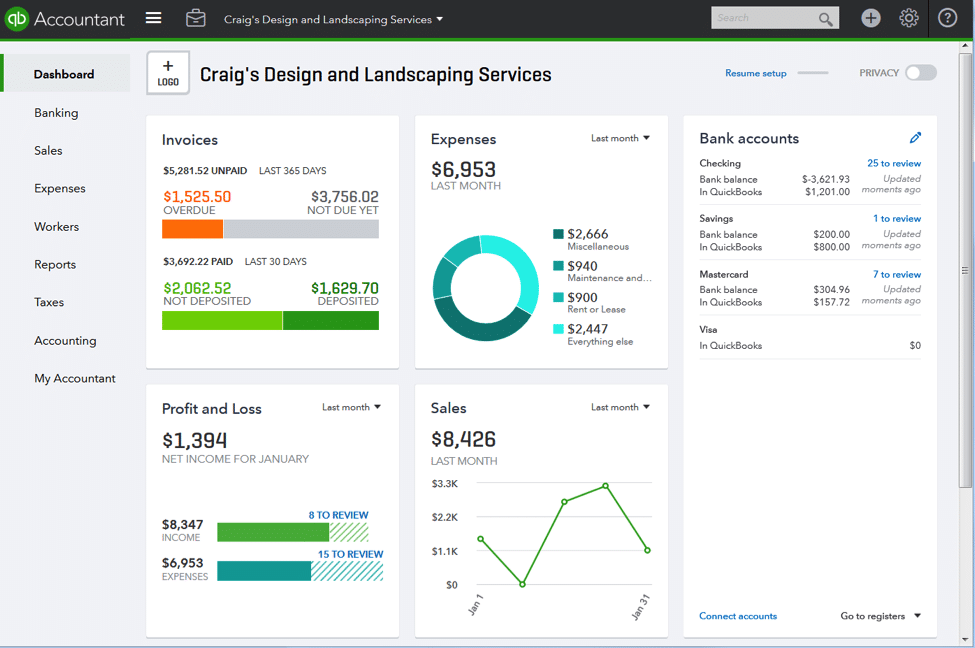
QuickBooks Online Accountant
QuickBooks online accountant is developed and designed in a way to help accountants. This lets the user connect with and also manage the clients' QuickBooks data. The user can also get the accountant-specific tool, along with reports which makes it easy to review. The features involved here are:
Managing the client’s books
Accessing exclusive accountant tools
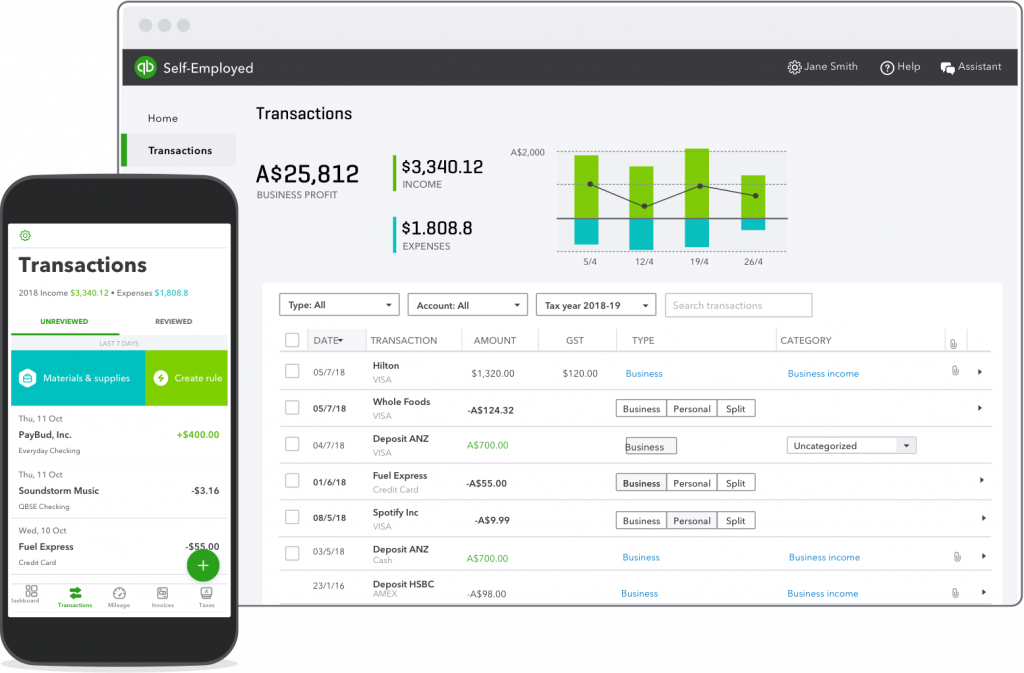
QuickBooks Self Employed
Well, if you are a freelancer, independent contractor, or service-based entrepreneur, then QuickBooks self-employed is just for you. This software makes it easy to track income and expenses, distinguish between business and personal transactions, and also to file Schedule C.
With QuickBooks Self Employed one can:
Track mileage automatically.
Differentiate between business and personal expenses.
Also, sending and tracking simple invoices become easy.
You can opt for this version if:
If you are a sole proprietor and have no employees.
In case you use the same bank accounts and credit cards for both business and personal spending. This makes it easy for the user to separate the business finances.
Also, in case the user is having business expenses and want to write them off as tax deductions to save money.
The user will also need some basic invoicing features.
And it also helps in calculating quarterly tax estimates.
If you want to make filing Schedule C easier. Filing becomes easy by sending the Schedule C data directly to TurboTax.
QuickBooks Self-Employed plans
Plan
Features
Pricing
Self-Employed
* Separation of business and personal expenses * Schedule C deductions * Automated quarterly tax estimates * Automatic mileage tracking
$7.50 per month
Self-Employed Tax Bundle
* All Self-Employed plan features * Quarterly tax payment via QuickBooks * Integration with TurboTax * 1 federal and 1 state tax filing
$12 per month
Self-Employed Live Tax Bundle
* All Self-Employed Tax Bundle features * Live consultation with a CPA * Unlimited help and support * CPA for final review of returns
$17 per month
To Conclude!
Now that you are well-versed with all the information related to QuickBooks and its versions, it is the right time to make a decision to choose best Version of QuickBooks for your business. We believe that the details we have summarized in this article might be enough to resolve the issue. However, if you still have any query, or in case you need any sort of technical assistance, you can get in touch with our XpertBooks Pro team. Our accounting software specialists will be there to assist you in a single call. Thus, feel free to get in touch at any point in time; we will be happy to help you.
FAQs
How do I determine the right version of QuickBooks for my business?
For the determination of the correct QuickBooks version for your organization, you should consider the size of your business, the demands of the industry, the assorted features required, and above all these, the budgetary constraints that cannot be overlooked.
What are the different versions of QuickBooks available?
The most common versions rolled out by Intuit include QuickBooks Online, QuickBooks Pro, Premier, QuickBooks Enterprise, and QuickBooks Desktop for Mac.
Can I switch between QuickBooks versions?
Yes! It is possible to switch between QuickBooks versions and the process requires data migration.
Can I access QuickBooks from multiple devices?
Yes! You can access the account from multiple devices. Even if QuickBooks Desktop versions are installed on a single computer system, they can be accessed using the Remote Desktop mode.
Are you facing the Error 15221 and unable to decide what to do? Well, we are here to help you. This article will provide you with all the information related to QuickBooks update error code 15221, its causes, and viable fixes. Make sure to read this article carefully. This error is seen when you go through a basic method of updating QuickBooks desktop or when a user tries to download a payroll tax tables update. This type of problem could be seen when opening the updated version of QuickBooks desktop or payroll software. As a result of this problem, you might not be able to launch the updated software.
Steps to fix the QuickBooks payroll error 15221
The easiest way to get rid of payroll update error 15221 in QuickBooks can be by updating the version of Internet Explorer already downloaded on the system. Moreover, manual update downloading is to be by the latest update from Microsoft download sender. You can also resolve the this error, after updating the Internet Explorer. In case the problem persists, then you are suggested that the Windows program files might be running on the system is highly unstable or damaged.
It should be noted that the Intuit doesn’t provide or support any assistance for Windows products. To fix the issues related to the operating system, it is recommended to consult accounting consultants of the concerned product for necessary assistance.
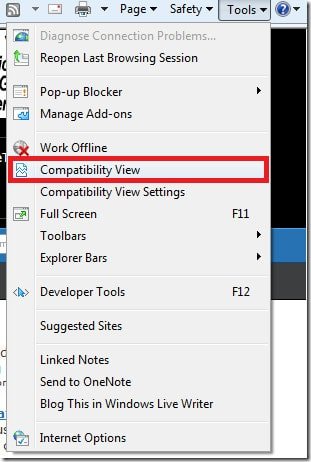
Solution 1: Improper configuration of Microsoft internet explorer
Often, some software, even after getting updated, fails to begin as the inaccurate configuration of the Internet Explorer that works side by side while you are downloading the updated version of QuickBooks. This results in a major issue of the files not matching with the C-Run time files of the Internet Explorer.
Solution 2: Update QuickBooks desktop to the latest release
Find out how you can keep your program updated to ensure that you are always equipped with the latest updates and features.
Close the company file and QuickBooks.
After that navigate to your Windows Start Menu.
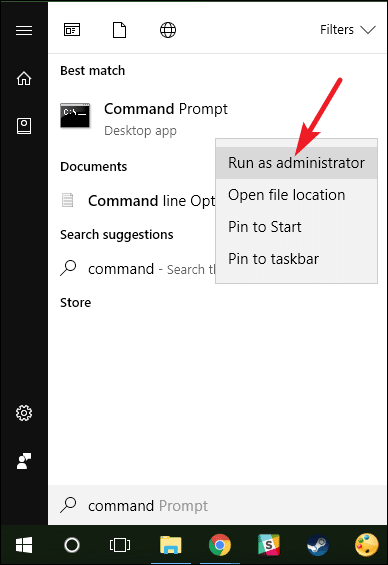
Find QuickBooks Desktop and hit a click on the icon, then right-click and select Run as Administrator.
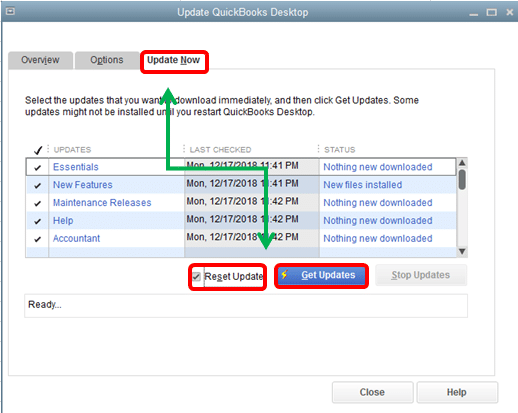
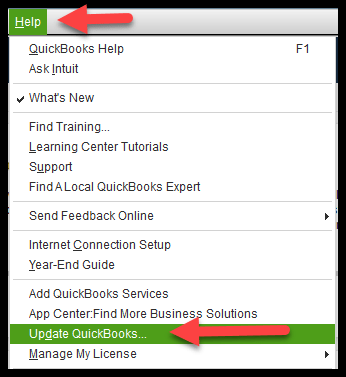
If you're on the screen that says No Company Open screen, then go to the Help menu and then choose "Update QuickBooks Desktop".
Next steps is to hit a click on your Option tab.
Also choose "Mark All" and then hit a click on the Save option.
Now click on the Update Now tab and choose Reset Update checkbox.
If you're ready, choose the option to Get Updates.
Solution 3: Adding Intuit as a trusted site
The addition of Intuit as a trusted website prevents your browser from blocking content from websites.
Initially, select the Customize and control Google Chrome⋮ icon and select Settings.
In the left pane, you need to choose the Privacy and security optionand then select Site Settings.
The next step to follow is to choose Cookies and site data.
Now select Add option in the Allow section.
End the solution by entering the *intuit.com, then select Add to save.
Solution 4: Install the Certificate
In the file location window, search for the Application File ( .exe file)
After that, hit a right-click and choose the Properties. The Application file Properties window opens.
Now choose the Digital Signatures tab, then select any of the options from the Signature list field.
Also choose the details opt.
In the Digital Signature Details window, you need to choose "View Certificate". Here you will see that the certificate window will open.
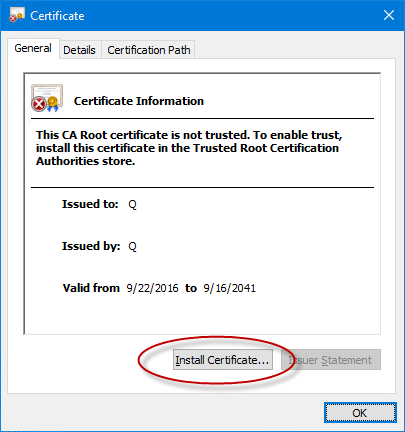
Under the General tab, in the Certificate window, choose Install Certificate.
When you are on the Certificate Import Wizard welcome screen, make sure your Store location is selected as Current User.
Now hit a click on Next step.
From here, on the Certificate Store window, your Windows has already chosen the certificate store in accordance with the nature of the certificate.
You need to click on Next, and then hit on Finish.
If you are prompted to confirm that the import was successful, you need to select "OK".
Important: Follow steps 2-6 for the remainder of the Security Certificates in the Digital Signature list.
Solution 5: Manual steps
If the solutions discussed till now did not help in fixing the QuickBooks error 51221, then in that case, you should resort to the manual method of fixation described below:
You will first have to reinstall QuickBooks desktop.
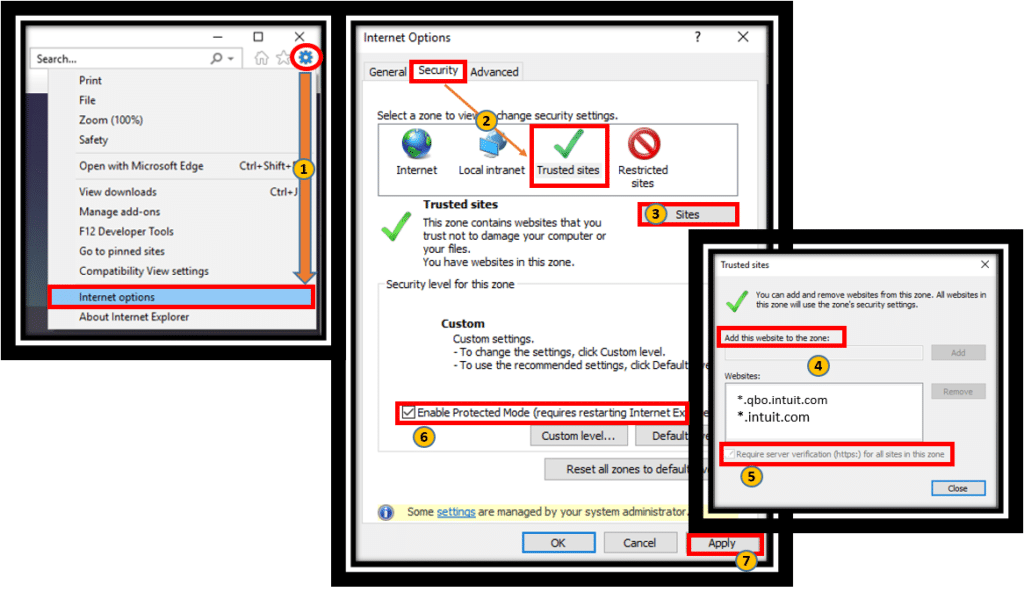
After that, open Internet Explorer.
And move to the Gear option and click on the Internet options.
Move to the Security tab and select trusted sites.
Click on the Site and Add the website.
After adding the website (Intuit), choose the close tab.
And also, click on Apply and hit the OK tab.
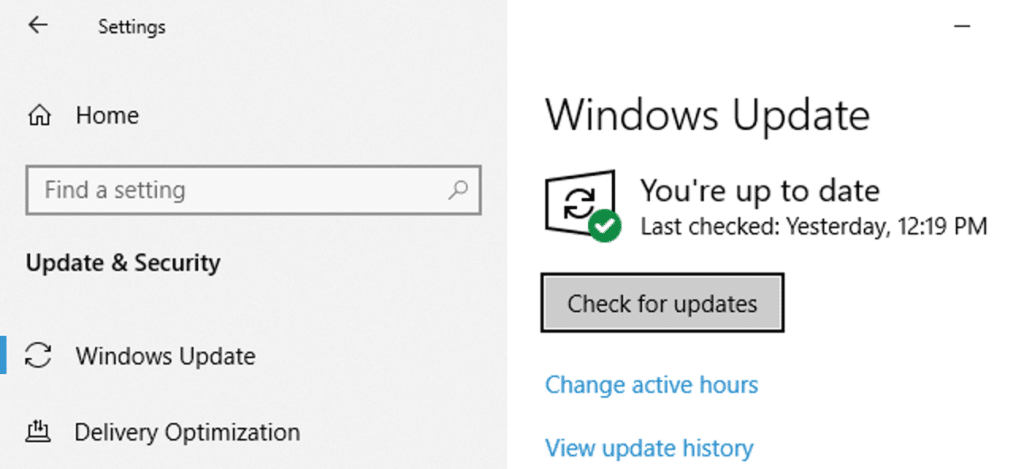
At times, an expired windows certificate might lead to such an issue; in that case, you need to run a Windows update. For that, open the Windows Update from the Start menu and click on the option to check for updates. Check mark all the necessary updates and get them downloaded. Finally, restart your computer and let these updates install on your computer.
Tackling the QuickBooks error code 15221 in payroll can be much easier if you know the exact steps. However, if you have any queries or if you are unable to get rid of the issue even after performing the required steps, then, in that case, contact XpertBooks Pro. Our experienced accounting professionals team will be pleased to assist you with your ongoing problems.
FAQs
What is QuickBooks Error 15221?
Error code 15221 in QuickBooks is observed mostly during the updating process QuickBooks payroll.
Can I update QuickBooks manually?
Yes! QuickBooks can be updated manually from the official Intuit website.
Can conflicting programs cause QuickBooks Error code 15221?
Yes! This update error can be caused by conflicting programs or processes in the background.
What causes error 15221 in QuickBooks?
The QuickBooks error message 15221 can be caused due to the following reasons: 1. Incorrect configuration of internet explorer. 2. Another reason can be if the digital signatures aren’t supported by the browser. 3. If the antivirus is restricting from downloading the QuickBooks update. 4. Moreover, if the QuickBooks data files are corrupted.
Is QuickBooks Desktop Payroll still available to purchase?
New sales of many desktop Payroll SKUs ended in 2024: existing Desktop Payroll subscribers can continue renewing on supported versions, and discontinuation policies outline what stops working if unsupported.
Which Desktop versions receive current payroll tax table updates?
Recent tax tables are delivered to supported releases (e.g., Desktop 2024/Enterprise 24.0); older versions may not download current tables.
What’s the best general checklist for payroll errors?
Updating QuickBooks and tax tables, validating payroll subscription, verifying Internet options/TLS 1.2, clear SSL, allowing QuickBooks in firewall setting, and using the repairing tools such as Tool Hub or File Doctor to fix data damage.
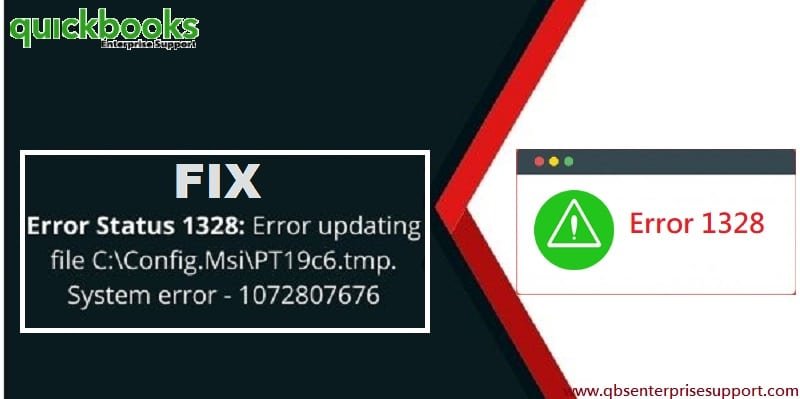
Well, as the error itself says, it is an update error. QuickBooks update error 1328 might be seen when updating QuickBooks desktop. This error could show up as a single error or before another error, and also the files referenced by these errors are usually like C:\ config.msi\ PT ** TMP . If you are also facing this problem, then reading this segment can be of great assistance. To get a better insight into this error, its causes and fixes, make sure to read this article carefully till the end.
You can also connect with our independent accounting professionals for any further technical assistance through the helpline number or the live chat. With years of experience under our belt, our technical specialists are well-versed in the technicalities involved while troubleshooting QB-related problems.
What does QuickBooks error 1328 means?
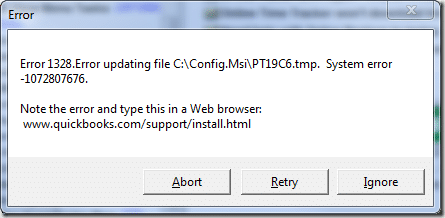
Error 1328 in QuickBooks desktop is just another error in QuickBooks that occurs when users embark on the process of updating or installing the accounting program. Also, several users have encountered this issue at the time of repairing the QuickBooks software. The following error message might be appear on your desktop screen:
Easy Methods that can be performed to remove QuickBooks Error 1328
You can perform the following methods, to easily rectify the error 1328 when installing, uninstalling, updating, or repairing QuickBooks Desktop. Let us have a look:
Method 1: Locate the config.msi file
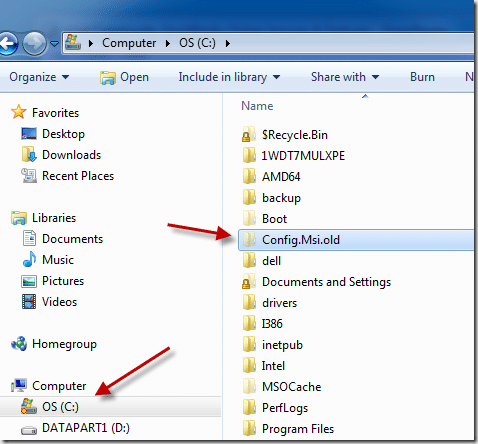
The first method that can help in fixing such error is to rename the file named 'config.msi' .
The first step is to right click on the Start key and then select Explore.
Double click the C drive key.
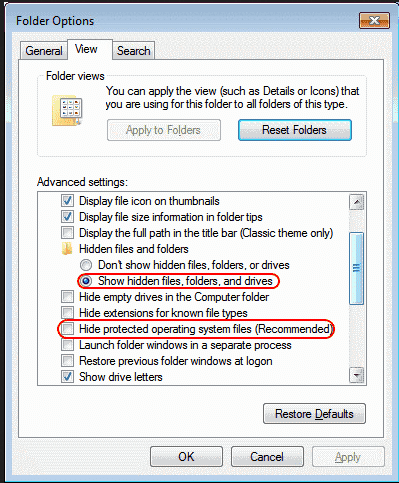
This will display all the Hidden files or as folders.
Click on Tools options and after that select folder.
Hit a click to View the tab option and then select all Hidden files as well as folders.
Click on the Apply all changes you have been made and press OK tab.
This appears to operate all necessary system files.
Right click on config.msi and select Rename it.
To save the changes in the file name, hit anywhere on the screen.
This will hide and protect the operating system files including all necessary hidden files and folders again on the system.
QuickBooks software ceases to operate without some essential Microsoft components. These elements consist of C++, Microsoft.net, and MSXML. Therefore, you must make sure that these components are installed in your system. To download them, follow the instructions given below:
Initially, access the ‘Start’ menu.
After that type ‘Update’ into the ‘Search’ field.
You are then required to choose the ‘Check for updates’ option.
When all the important updates show up on the screen, download them, and afterward, restart your computer.
Allow the system to install all these updates. The process may take considerable time, depending on the size of the files and the speed of your system.
Once finished, launch the QuickBooks desktop software and proceed with your usual operations. Check if the update error 1328 shows up again.
Method 4: Repair the QuickBooks installation process
Initially, you need to open Windows and log in as an System Administrator.
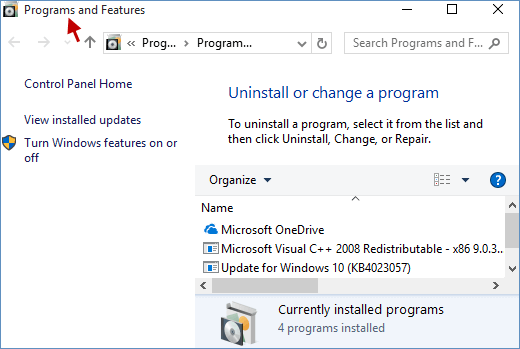
Open the Windows control panel tab and select Programs and Features.
This will locate the QuickBooks product heading section and select it and click to Uninstall them by changing any tab.
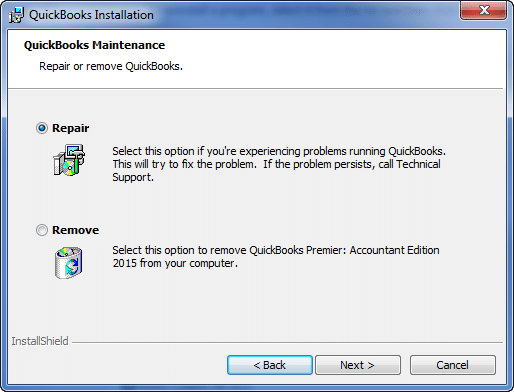
Select the Repair tab when QuickBooks installer appears.
Run QB application on the system, then need to apply patch when it completes.
In case a user is fortunate then only the patch will be applied.
In case the error persists, then reach out for technical assistance.
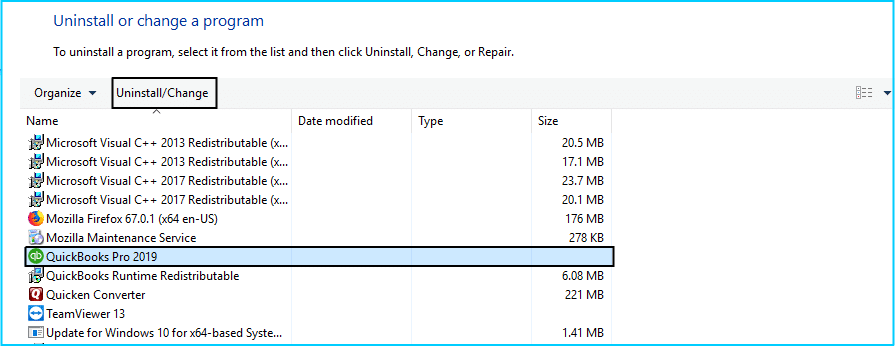
For this, open the Windows Start menu and visit the Control Panel.
Then move to Programs and Features or Uninstall a Program option.
Opt for QuickBooks desktop from the list of programs and hit on the Uninstall/Change button.
Hit on Next tap.
Wait for the process to finish. Now, restart your PC.
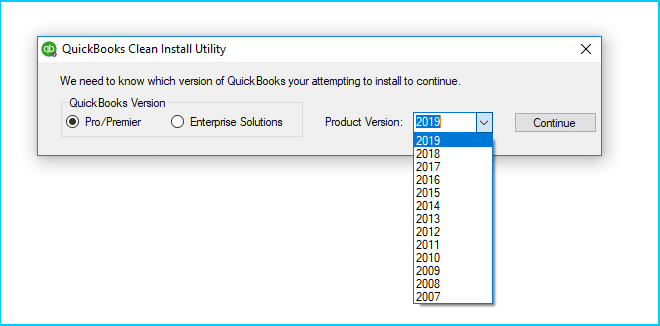
Step 2: Clean Install the QuickBooks Desktop
Now, you should restart the installation process that you followed at the time of installing the software afresh after purchasing it.
The first option is to make installation process of a QuickBooks of a QuickBooks as directly from the installation CD drive.
You can also be installed QuickBooks software through a downloaded file as given into the system.
Directly installed QuickBooks software from a CD
Download or simply install QuickBooks program with the help of a manual guide or a user can ask expert advice that is the best option to get quick assistance in less time.
You can either use the CD for installation or else install the software using the downloaded .exe file. In either case, you will require the Product and license keys. So, make sure that they are available with you at the time of installation.
The very first step here is to apply any registry repair tool and repair the damaged registry entries that are related to the QuickBooks application.
Another step can be using a malware removal tool, and let the users fix any type of malware infectious attack from the system, and get rid of all malware attacks from a system.
Next step is to remove all the unwanted or junk files from the system.
It is essential to uninstall all the outdated PC device drivers.
Restore it by doing undo through recent system changes, this applies your Windows system.
Uninstall and reinstall QuickBooks desktop.
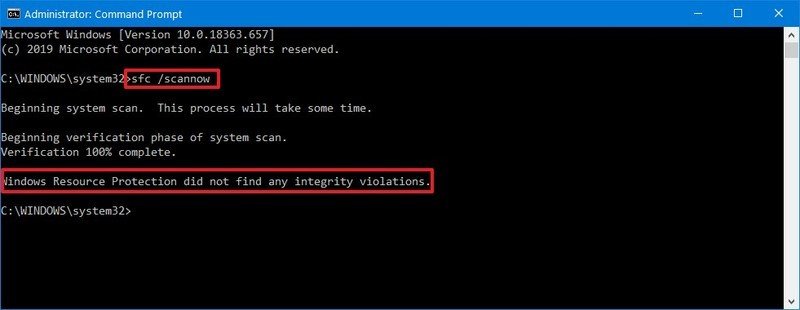
Run Windows system file checker by scanning.
Install all essential Windows updates.
Summing Up!
By the end of this article, it is expected that you might be able to get rid of the QuickBooks update error 1328. However, if you are unable to troubleshoot the issue even after performing the steps above, then in that case it is suggested to get in touch with our XpertBooks Pro team via our helpline number: 1.800.761.1787 and let them work on your behalf. Our team works to identify the root cause and help you restore normal operations as quickly as possible.
FAQs
How can I prevent QuickBooks update error 1328 in the future?
To prevent this error in the future, users should implement the following pointers: 1. The internet connection during the update process should be uninterrupted. 2. Quit all unnecessary programs in the background. 3. Temporarily turn off the antivirus before commencing the QuickBooks updates.
Can I encounter update error 1328 on a Mac?
No! This update error is usually encountered on Windows systems. Although update errors are also encountered in QuickBooks for Mac as well. Error codes associated with them may different.
What is the Config.msi file in QuickBooks?
The QuickBooks Config.msi file is a temporary file that is employed during the installation and uninstallation of QuickBooks.
What tools in QuickBooks Tool Hub can fix the update errors in QuickBooks?
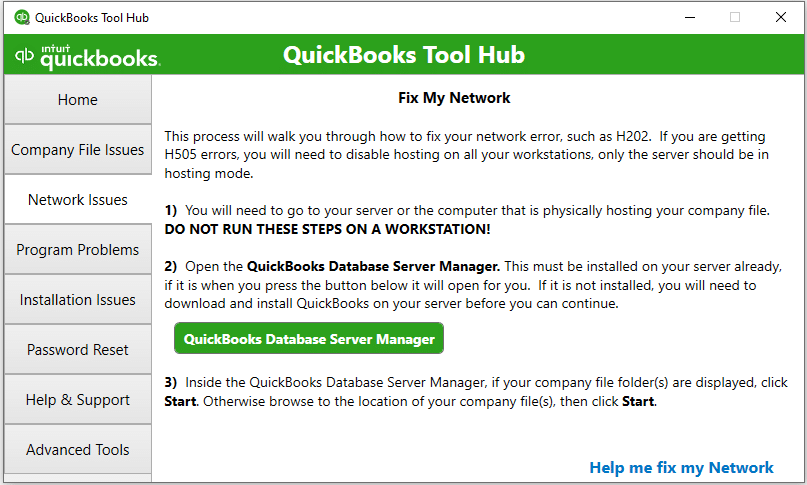
The Tool Hub program is an encapsulation of multiple features that aid in fixing various QuickBooks desktop errors. These tools include: 1. Quick Fix My Program 2. Company File Issues 3. Network Issues 4. Program Problems 5. QuickBooks File Doctor Tool 6. Component Repair Tool, etc.
Does Windows Update lead to loss of Quickbooks company file data?
No! Updating Windows doesn't cause any company file data loss, but it is suggested that users create a backup of their company files before updating or restoring Windows.
Are you in search of the right set of steps to get rid of QuickBooks payroll is not taking out taxes problem? If yes, then your search ends with this segment. The QuickBooks payroll is not taking out taxes is not a common problem as it can hamper your workflow. This error usually occurs due to incorrect payroll settings or other payroll configuration problems. Due to this error, the employee paychecks may be calculated incorrectly and lead to payroll discrepancies while filing tax. There can be couple of factors which are elaborated later in this segment.
Why you land into QuickBooks Payroll is not Taking taxes out of Payroll check error?
There can be a couple of factors that can drag you in this sort of issue. These factors include the following:
If the gross wages belonging to the employee a per the last payroll are too low.
If the total annual salary of the employee is more than the salary limit.
Outdated payroll tax tables can also be lead to this issue.
Sometimes the issue may also occur after making changes to employee withholding information or payroll preferences.
Another typical reason causing this problem can be if the payroll tax tables is outdated.
Solutions for QuickBooks Payroll aren't calculating Payroll taxes problem
Dealing with payroll taxes errors in QuickBooks is easy, as they have a definite set of solutions. Below we have tried to mention the common solutions that you can implement so as to get rid of the issue successfully.
Condition 1: Just in case the year-to-dateand quarter-to-date wage or tax information of the employee is incorrect
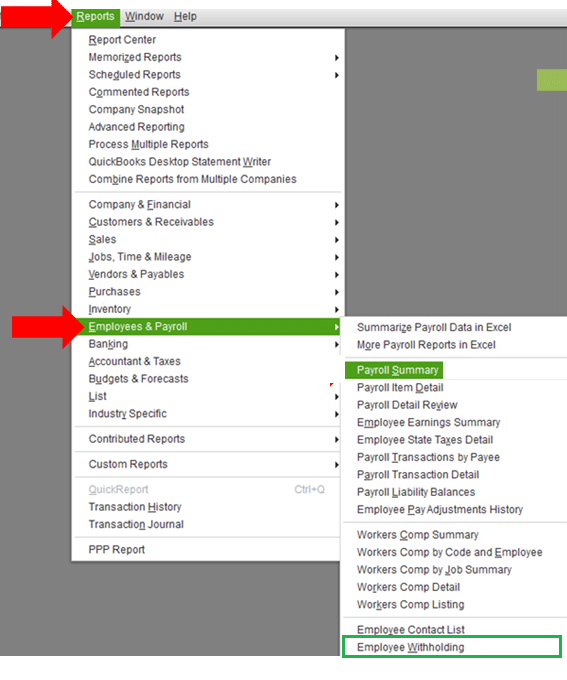
You can view the taxes of all the active employees in an employee withholding report. This process involves the following set of steps:
Initially choose Reports.
Head to the Employees and payroll.
Hit a click on Employee withholding.
Tap on Customize Report tab.
Choose the columns as per your requirements.
Hit a click on the Items you want to display on your report in the display list section.
Choose OK tab to Save changes.
Ascertain if your Employees are set up accurately for state, local, and federal taxes.
For editing employee info window, ensure to double click the Employee’s name.
Moreover, the employee information window will appear on the screen.
Hit a click on Payroll info.
Tap on Taxes tab.
Hit a click on Federal, state and/ or other tab.
Ensure that employee is marked correctly for taxes.
Condition 2: If you have bought a QuickBooks payroll subscription
In this scenario, you can save the Paycheck of the employee depending upon the calculations you made earlier.
Change the Check details of the employee for ensuring accurate calculations.
Manually enter both the Withholding and Employer matches in QuickBooks payroll.
Just in case you have already subscribed the assisted version of payroll, then you might face issue due to the Payroll taxes being filled by intuit.
Condition 3: Check if the annual limit has been set or reached
If a payroll item is not calculating correctly and it stops calculating on a paycheck, there may be a checkmark in the checkbox of an annual limit box and default limit which the employee has reached. You can verify the setup of the item by:
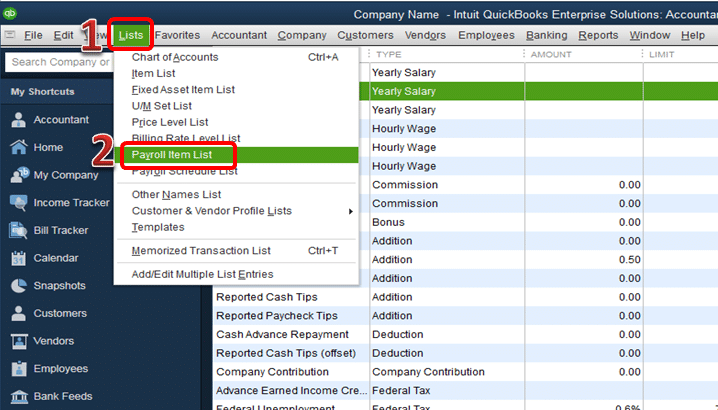
Select Lists and Payroll Item List from the top menu bar.
After that right-click on the payroll item that you wish to modify and choose Edit Payroll Items.
Next, you need to scroll down to the Next screen until you reach the Limit Type screen.
Now verify that the box at the bottom is correct.
If the limit is correct, the employee's payroll should stop calculating at that limit.
Update the amount if the limit is not correct.
Next is to do is under Limit Type, Verify that you have chosen the right option.
Annual - Restart every year
Monthly – Restart every month
One-time limit
You can change the default limit or Limit Type selection to suit your needs.
End the process by hitting a click on Finish.
Alternative method to correct Payroll taxes in QuickBooks
Method 1:
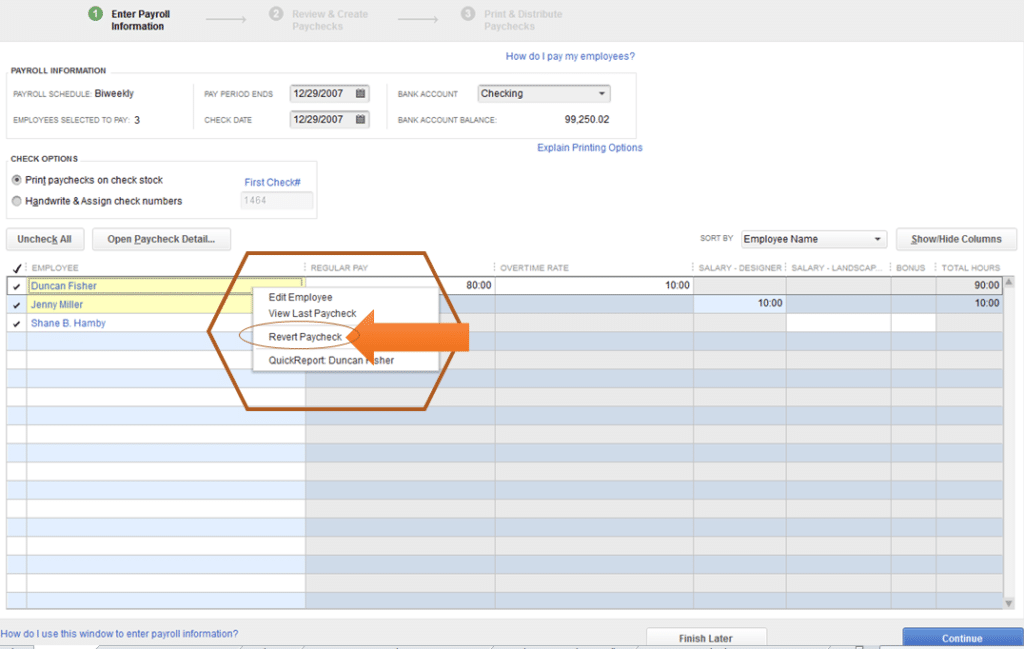
You need to ensure that the software is in the latest version. And review the employee’s tax setup, as it affects the process of QuickBooks calculating the taxes. After that revert the employee’s paycheck. This would refresh the payroll information to calculate the taxes on the transaction. This can be done using the set of steps below:
You need to open the Employee’s payroll information.
Later on, right click the name of the Employee which is highlighted in Yellow color.
Choose Revert paycheck.
Method 2:
Aft first, you need to open our QuickBooks,
Afterwards, Hot a click on Employees.
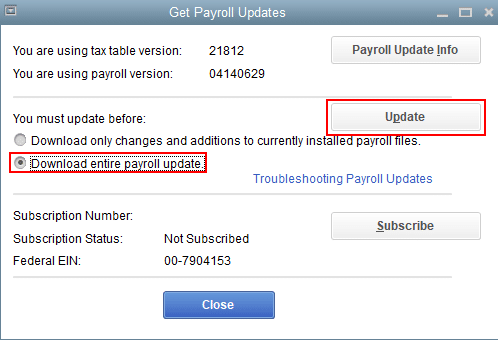
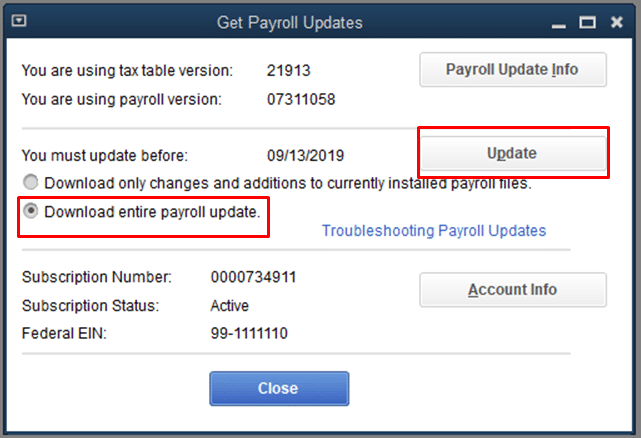
From here, you need to select the Get Payroll Updates option.
Now select the Download entire payroll update radio-button.
Also choose Update opt.
You need to wait for the process until the complete update is finish.
Once the above mentioned applied successfully, you can try to run your payroll again for correct taxing.
The above segment would have helped you in tackling through the QuickBooks Payroll is Not Taking Out Taxes issue successfully. If you still have any issue or need more information about the payroll taxes, then our XpertBooks Pro personnel can rescue you from this annoying error. All that is needed is reaching out to our independent tech geeks right away, and we will get back to you with immediate solution.
FAQ's
Why aren't taxes being taken out of paycheck?
Taxes may not be taken out of a paycheck due to an error in the payroll setup, incorrect employee information, or an exemption claimed on the W-4 form.
How do I fix federal tax withholding in QuickBooks?
To fix federal tax withholding in QuickBooks, go to the employee's profile, edit the W-4 form, and update the tax withholding information.
Why is payroll not taking taxes out of checks?
Payroll may not be taking taxes out of checks due to incorrect tax setup, outdated software, or incorrect employee information.
Why Quickbooks not withholding payroll taxes?
QuickBooks may not be withholding payroll taxes due to incorrect payroll tax setup, outdated software, or incorrect employee information.
Are you hunting for the right steps to reconcile payroll liabilities in QuickBooks? All your questions will be answered by this informative piece of writing, which demands your keen attention. Well, payroll liabilities in QuickBooks can simply be categorized into two basic categories:
Employer Expenses
Employee Liability
These two are further classified into sub categories: federal income tax, state income tax, social security withholding, and Medicare withholding. It should be noted that some liabilities that are required to get recorded in the liability accounts shouldn’t be entered into the expense account. Moreover, the balances in these liabilities should be zero. Reconciling isn’t only associated with cross-checking the current and the savings bank accounts, rather it is a lot more than that.
This piece of writing is written with an intent to brief the readers with the entire steps involved in reconciling payroll liabilities in QuickBooks. Get a better grip onto the process by reading this segment with much care.
Important steps for reconciling payroll liabilities in QuickBooks
Below steps can be perform, so as to reconcile payroll liabilities in QuickBooks successfully. Let us check out:
1st Step: Creation of Liability accounts
Start off with making a list of the liability accounts
Below is the list of the payroll liability accounts that are required to reconcile.
Federal income tax withholding payable
Statement income tax withholding payable
FICA tax payable
401k or retirement benefit premiums payable
Health insurance payable
2nd Step: Creation of Transaction labels
Furthermore, you need to create transaction labels to separate employee and employer payroll liability transactions
Herein, one needs to turn on tagging from the settings tab and then the QuickBooks lab
You need to look for the tags feature and turn it on by clicking on the done tab when getting the confirmation
Further, create a new tag group
You need to head to the settings tab and go for tags
Also choose new and then tag group
You will have to name the new tag group payroll liabilities and hit save.
3rd Step: Creating payroll liability sheets
You need to now set up payroll liability reconciliation sheets.
4th Step: Printing the reports
Moreover, print reports from your QuickBooks payroll software and general ledger. You can either print these reports or send them via the email, as per your convenience and requirement.
5th Step: Reviewing the transaction
Once done with that, you need to review each payroll liability transaction and also reconcile outstanding items. This step is important as it double-checks any correction or mismatch in the payroll transactions.
6th Step: Fixing Reconciling items
Later on, you need to fix payroll liability reconciling items.
Procedure to Reconcile Payroll Liabilities in QuickBooks Payroll
Below are the steps to reconcile payroll liabilities in QuickBooks online manually.
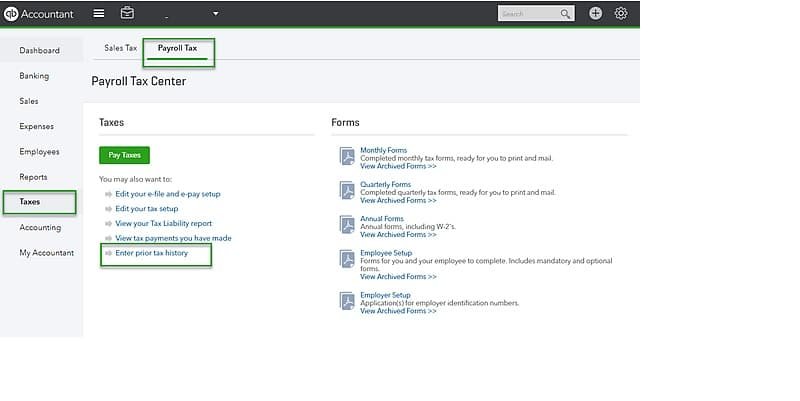
Start off with selecting Taxes in the QuickBooks online navigation bar.
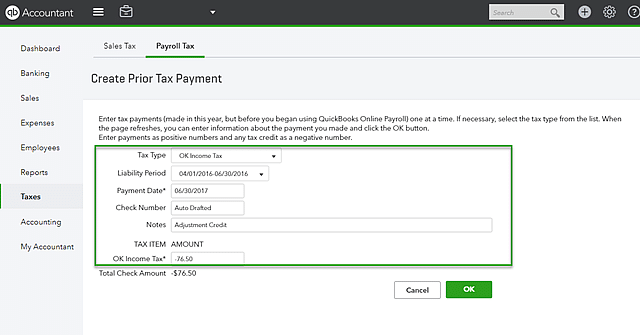
Furthermore, you need to click on Payroll taxes option and under pay taxes and hit enter Prior tax history.
You need to now choose Current year and liability period.
Moreover, hit a click on Add payment and choose Tax type to reconcile payroll tax returns.
Now you are supposed to enter Liability period and Period date along with Check number and notes.
And then create a credit by creating a Negative amount.
Performing the steps discussed in above might be of great help in reconciling payroll liabilities in QuickBooks. As always, if you have any query, comments, or concerns, reach out us immediately at XpertBooks Pro. Our payroll consultants team will be pleased to assist you!
Frequently Asked Questions (FAQs)
What are payroll liabilities in QuickBooks?
The various payroll liabilities in QuickBooks enclose the wages of employees, payroll taxes, employee education, and service costs.
What is the difference between QuickBooks payroll liabilities and expenses?
Liabilities includes the costs that employers need to pay for hiring employees. On the other hand, Expenses are the costs of running the business on a daily basis.